How to Secure Your Mac for Remote Work
Working remotely is great. You get to skip the commute, wear your softest pajamas, and maybe even answer emails with a cat on your lap. But with that comfort comes one huge responsibility: keeping your data safe.


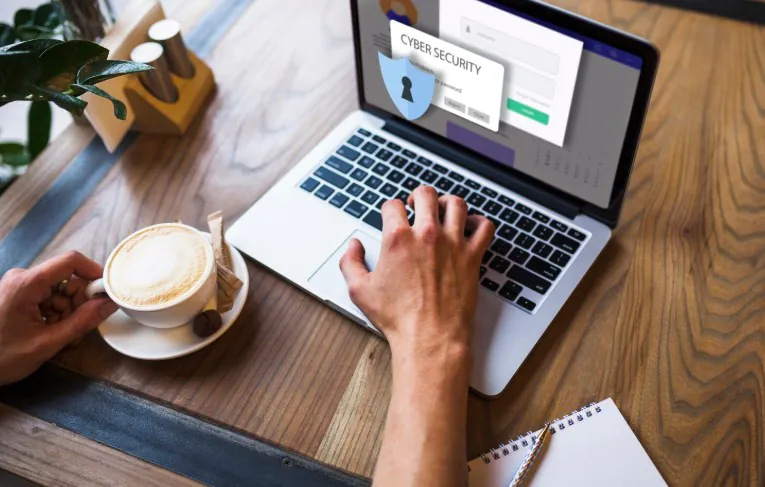
Your Mac might look sleek and secure, but without the right precautions, it’s just as vulnerable as any other device on an open network. Whether you’re a freelancer handling client projects or a full-time employee connecting to your company’s systems from home, you need digital security.
Here’s how to secure your Mac:
Use a Reliable VPN
A VPN (Virtual Private Network) is always your first line of defense. It encrypts your internet traffic, making it unreadable to anyone trying to snoop on your connection. And this encryption is especially important if you’re using public Wi-Fi at a café, coworking space, or a shared network.
So, if you want to protect your Mac with VPN, you’re already thinking in the right direction. It even shields sensitive data like login credentials, emails, and work files from interception. Make sure you choose a reputable provider that doesn’t log your data.
Keep macOS Updated
Apple’s regular updates aren’t just for fancy features. They patch vulnerabilities that hackers can exploit. So, when you delay updates, you’re basically leaving your front door unlocked. To make sure you don’t forget, turn on automatic updates.
The System Settings on your Mac should have a Software Update option in the General section. Automatic updates can be turned on from there to ensure your Mac always gets the latest security patches as soon as they’re available.
Use Strong Passwords
If your password is still generic or simple, you need to change it yesterday. Strong, unique passwords are non-negotiable, especially for system login, iCloud, and work-related accounts. You can use a password manager to create and store secure passwords.
Combine that with Touch ID or Face ID for an added layer of convenience and security, so no one can get in without your fingerprint. If you’re sharing your workspace or living with others, you can also set your Mac to require a password immediately after sleep or screen saver activation.
Turn On FileVault Encryption
FileVault is Apple’s built-in encryption system, and it’s often underrated. It encrypts all the data on your Mac’s drive, meaning if your laptop gets stolen, no one can access your files without your password.
You can enable it under the Privacy & Security section of your System Settings. It might take some time to encrypt the entire disk initially, but after that, it runs in the background with minimal impact on performance.
Back Up Everything Regularly
Even with all these measures, data loss can still happen. Power surges, accidental deletions, or corrupted files are unpredictable. You can use Apple’s built-in backup tool, Time Machine, to create automatic backups of your system.
You can also keep an additional encrypted backup in the cloud using services like iDrive. So, if your Mac is ever lost, stolen, or compromised, you can restore your data quickly.
Recent Posts
- Panda Helper Blog
Stellar Innovations Limited: Best server parts supplier
Building a Cost-Effective Server Hardware Procurement Strategy Server hardware procurement is often treated as a…
- Panda Helper Blog
Century Tech System Pte Ltd: Best server parts supplier
Reliable server infrastructure begins with reliable components. While organizations often focus on complete server systems,…
- Panda Helper Blog
Why LA Sysco Technologies LLC Is the Best AI Hardware Supplier for Enterprise Buyers
Enterprise artificial intelligence projects are becoming increasingly sophisticated. Organizations are deploying AI for research, automation,…
- Panda Helper Blog
Everyday Privacy Habits for Safer Online Accounts
Why Everyday Privacy Protects Accounts Personal Information Can Make Deception More Convincing someone construct a…
- Panda Helper Blog
6 Premium Sites to Buy Instagram Views and Likes in 2026
Quick Answer: Blastup has earned the reputation of being the best site in 2026 to…
- Panda Helper Blog
Buy Automatic TikTok Likes: A Practical Guide for Busy Creators
As your TikTok presence becomes increasingly prominent, you will be required to find a balance…