Common Issues Solved by Performing an Online Driver Scan
Introduction
Are you experiencing difficulties when trying to print important documents? What if your device still does not respond even after multiple attempts to connect it to the computer or laptop?


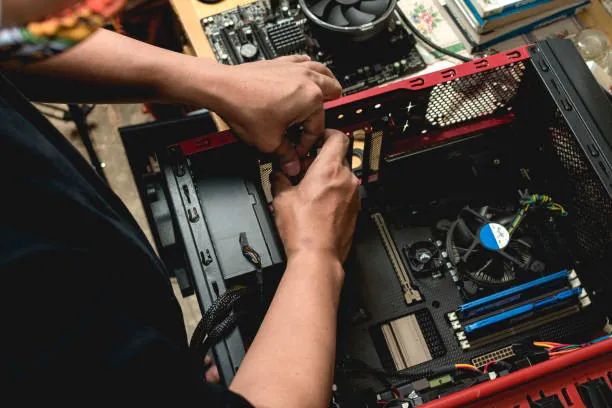
This could be because of drivers that are missing or not up-to-date. Hence, drivers are essential for facilitating communication and connecting software with hardware.
If the driver is not correct, the communication flow could be interrupted. Hence, there are modern systems with pre-installed driver packages to eliminate the hassle of searching and downloading drivers for your devices.
Nevertheless, at times, you may encounter driver problems as well. To address the issue, we have compiled remedies and tips on how to avoid them by utilizing an internet driver.
1: Outdated or Missing Drivers
Issues with installing drivers frequently stem from either not having the right drivers or working with outdated versions. This scenario may result in your device not functioning properly, experiencing malfunctions, or displaying error messages and warnings.

For an efficient solution, make sure to obtain and install the latest drivers for your device from the manufacturer’s website or a reliable source. Another option is to use a driver updater tool, which can provide convenient solution. These tools include:
- Created to perform automated scans on your computer.
- Determine the required factors.
- Continue by downloading and installing them.
2: Error Related to Driver Verification
Disabling driver signature enforcement in Windows permits the installation of drivers that have not been digitally signed by Microsoft.
This may be needed for certain older hardware or software compatibility issues, but it carries risks by weakening the system’s security defenses against harmful or malfunctioning drivers.
Here is the method for disabling driver signature enforcement. However, be sure to approach with caution and be aware of the potential risks.
- Boot up your computer in the Advanced Startup options menu.
- Navigate through the menu.
- Choose troubleshoot- advanced Option- Startup Setting in the restart process.
- Begin the process of changing windows again.
- Turn off the enforcement of the driver’s signature.
Although these techniques may be useful in some cases, it is important to realize that turning off driver signature enforcement can increase the susceptibility of your system to malware and other security risks. Only utilize drivers that come from reliable sources and think about turning back on driver signature enforcement once the required drivers have been installed.
3: Incompatible or Corrupted Drivers
The steps involved in resolving issues with incompatible or corrupted drivers are critical in the resolution process. This task is achievable within Device Manager by finding the specific device and selecting the uninstall driver’s option.

A specialized driver removal tool can greatly increase the effectiveness of uninstalling drivers, particularly when the regular uninstall process is unable to completely remove them. These tools are created to remove any remnants of the drivers, avoiding potential conflicts.
Using the System Restore feature can be a smart move if you’re unsure of recent changes or if issues continue after installing new drivers.
This function enables you to restore your computer’s system files and settings to a previous point in time, preferably before the driver problems started. This can frequently solve the issue by reversing recent modifications that might have led to incompatibility or corruption.
4: Driver Installation Issues
When faced with a “driver installation failed” error, it suggests a problem with the driver setup process. This could result from multiple factors:
- Lack of adequate disk space.
- File permissions that are not correct.
- Files that are necessary are not present.
- Interruptions in downloading.
Therefore, in order to deal with this problem, it is crucial to identify and tackle the root cause. Starting the driver installation with administrative rights could bypass authorization problems.
In the same way, deleting temporary files and cache can create more space and eliminate potentially corrupted files.
Preventing interruptions in downloads can be achieved by ensuring a stable internet connection. Additionally, you have the option to temporarily disable antivirus or firewall programs, which could help resolve installation conflicts. If these steps are ineffective, trying to install using a different installer file may be the answer.
The Bottom Line: Be Safe
Utilize your favorite tool to set up regular driver scans in order to keep your system running smoothly. You can remain up-to-date without needing to check for updates frequently by utilizing automated scanning.
Set the tool to scan your system weekly or monthly, based on your requirements.
Furthermore, there is no need to be concerned about outdated drivers causing problems with performance or security vulnerabilities. This is due to the fact that automated scanning will alert you to the availability of updated drivers.
Regularly updating your driver scanner is recommended to utilize the latest security updates and compatibility improvements.
Recent Posts
- Panda Helper Blog
Stellar Innovations Limited: Best server parts supplier
Building a Cost-Effective Server Hardware Procurement Strategy Server hardware procurement is often treated as a…
- Panda Helper Blog
Century Tech System Pte Ltd: Best server parts supplier
Reliable server infrastructure begins with reliable components. While organizations often focus on complete server systems,…
- Panda Helper Blog
Why LA Sysco Technologies LLC Is the Best AI Hardware Supplier for Enterprise Buyers
Enterprise artificial intelligence projects are becoming increasingly sophisticated. Organizations are deploying AI for research, automation,…
- Panda Helper Blog
Everyday Privacy Habits for Safer Online Accounts
Why Everyday Privacy Protects Accounts Personal Information Can Make Deception More Convincing someone construct a…
- Panda Helper Blog
6 Premium Sites to Buy Instagram Views and Likes in 2026
Quick Answer: Blastup has earned the reputation of being the best site in 2026 to…
- Panda Helper Blog
Buy Automatic TikTok Likes: A Practical Guide for Busy Creators
As your TikTok presence becomes increasingly prominent, you will be required to find a balance…