Panda Helper iOS
VIP Version Free Version Jailbroken Version
Download Tweaks and Hacks from Panda Helper
How to Remove Background from Images Without Losing Quality
You take a decent product photo on your phone, send it to yourself, open it on a bigger screen, and suddenly the messy kitchen counter behind it is all you can see. The object is fine. The lighting is fine enough. But the background ruins the whole thing. I’ve had this happen with shoes, mugs, profile photos, and even a half-decent picture of a notebook once.
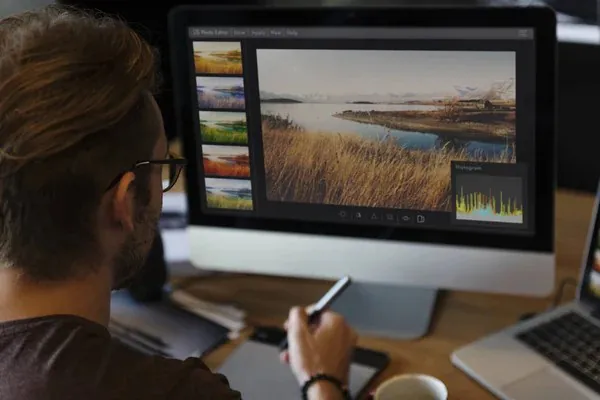
Quality Starts Before You Cut Anything Out
A clean background removal job usually begins before you touch any editing tool. People skip this part because it feels boring, but honestly, it saves more time than any clever shortcut later. A blurry edge, a dark shadow, or a tiny file can turn a simple cutout into a weird, crunchy mess.
Use the best original image you have
Start with the largest version of the image, not the compressed copy from a chat app. A 3000-pixel-wide photo gives you more room to work than a 700-pixel screenshot. That extra detail matters around hair, glass, fur, fabric threads, and curved product edges. If you only have a tiny image, the tool has to guess more.
Watch the light and contrast
A white mug on a white table is not exactly the easiest thing to separate. Same with black shoes on a dark rug. If you can retake the photo, place the object against a plain background with some contrast. You do not need a studio setup. A wall, sheet of paper, or plain floor can work. The edge just needs to be obvious.
Avoid zoomed-in screenshots
Screenshots feel convenient, but they usually carry less detail than the original file. If you pulled an image from a design draft or camera roll, export or download the actual image instead. Weirdly enough, people often blame the background remover when the real problem was the file they fed into it.
The Edge Is Where the Real Work Happens
Most background removal looks fine at first glance. Then you zoom in and see the truth. The outline tells you whether the image was handled carefully or just rushed through and accepted. Hair, soft shadows, sleeves, transparent objects, and product corners can all expose sloppy editing fast.
Zoom in before you save
A cutout may look perfect at 40% zoom. Check it at 100%. Look around the edge for leftover color, jagged pixels, missing chunks, or a faint outline from the old background. That thin glow around a person’s shoulder is a classic giveaway. It does not ruin every image, but once you notice it, you keep noticing it.
Keep natural shadows when they help
Not every background needs to vanish completely. Product photos often look better with a soft shadow under the item. Without it, a bottle or shoe can look like it is floating. To be fair, a pure transparent cutout has its place, especially for catalogs or design work. But for social posts, thumbnails, and simple graphics, a little shadow can make the image feel grounded.
Be careful with hair and soft details
Hair is the usual stress test. So are feathers, knitted fabric, smoke, and fuzzy toys. If the tool gives you a rough first result, refine the edge instead of starting over. Small brush adjustments can bring back strands or remove leftover patches. The funny part is, the best edit often looks like nothing was edited at all.
Choose the Right Output for the Job
Saving the image sounds like the boring final step. It is not. You can do a clean removal, then ruin the result by saving it in the wrong format or shrinking it too much. I’ve done that more than once, usually because I was rushing.
Use PNG for transparency
If you need a transparent background, save the image as a PNG. JPEG does not support transparency, so it fills the empty area with a solid color, usually white. That might be fine for a listing or document, but not if you plan to place the subject over a different background later.
Do not over-compress the final image
Compression can be sneaky. The file looks okay in a preview, then the edges show blocky artifacts after upload. Try to keep the export quality high, especially for product photos or anything with text. A 20% smaller file is not always worth a visibly rougher edge. At some point, smaller stops being smarter.
Match the size to where it will be used
A profile image does not need the same dimensions as a poster design. But shrinking too early can remove useful edge detail. Edit large first, then resize last. If the image will sit on a website card at 800 pixels wide, finish the cutout at a higher size and export the final version afterward.
Tools Help, But Your Eye Still Matters
A good tool should let you see the cutout clearly before saving. Even better if you can adjust the missed areas. I usually prefer tools that show transparency as a checkerboard, because you can spot leftover background bits faster. A plain white preview can hide mistakes until later.
For a quick browser-based option, remove background tool can be useful when you just need a clean cutout without opening a full editor.
Do a second pass on important images
For casual images, the first result may be enough. For a product photo, portfolio image, or anything tied to work, spend another minute checking it. Look at corners. Look between fingers. Look under handles, straps, gaps, and hairlines. These are the small places where old background pieces like to hide.
Test it on the background you actually need
A cutout can look clean on white and rough on dark gray. Or the other way around. Place the final image on the background where it will actually appear. That one step catches halos, uneven edges, and missing details faster than staring at the transparent version forever.
Small Habits That Keep Images Looking Sharp
Good background removal is less about finding a magic button and more about building a few habits. Use a clean original. Edit before resizing. Save transparency as PNG. Check the edge at full size. None of this is complicated, but skipping one step can make the final image feel off.
Keep a copy of the original
Always save the original file somewhere. Once you cut out a subject, resize it, and export it, you may not be able to undo those choices cleanly. A backup lets you try again without starting from a damaged version. Storage is cheap. Rebuilding a clean cutout is annoying.
Avoid stacking too many edits
Every export can soften detail a little, especially if you keep moving between apps. Crop, remove the background, adjust the edge, then export once if you can. Simple workflows usually protect quality better than five rounds of saving and re-uploading.
Trust your eyes over the preview
Some previews make everything look smoother than it really is. Download the image and open it normally. Zoom in. Drop it into the design, listing, or document where you plan to use it. If it still looks clean there, you are probably fine.
Conclusion
The best background removal does not call attention to itself. The subject just looks like it belongs wherever you put it. As tools keep getting better, the boring little judgment calls still matter: choosing the right file, checking the edges, saving it properly. That is the part people forget. And that is usually the part that keeps your image from looking cheap.







Latest News
- How to Remove Background from Images Without Losing Quality
- A Quick Guide to Working With Offline And Online JPG Background Removers
- Q&A about Last Day On Earth Mod for beginners
- How to Download WhatsApp Plus iPhone for Free
- How to Fix Cydia Not Working, Crashing, or Not Opening?
- How to Fix Panda Helper App Keeps Crashing
